Time Management, Revisited
Almost a year after my first attempt, Schedule Everything is a single Rust binary: my AI agent plans the week, reminders refuse to be ignored, and a browser workspace shows where the time went.
 Qijun Han
16 min read
Contents
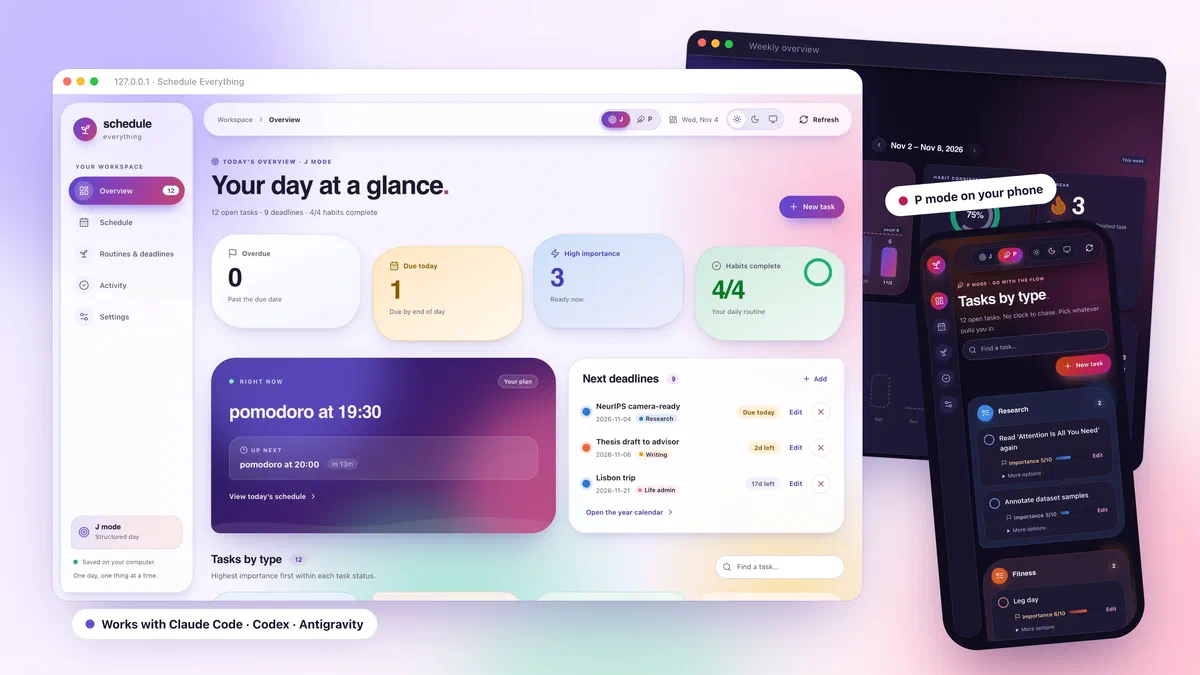
Last December I wrote about a small Python daemon that nagged me through the day. The idea behind it still holds: if your schedule is a set of plain files, you can automate the boring parts without giving up control. Almost everything else has been rebuilt. Schedule Everything is now one Rust binary called rmd, it has a browser workspace, and the most tedious part of planning, turning a messy week into a schedule, is something I now hand to my AI agent. This is the post rewritten to match.
The problems haven’t changed#
Last time I listed what kept going wrong when I tried to plan. Every item is still true, so here is the same list next to what the tool does about each one today.
| What kept going wrong | What Schedule Everything does now |
|---|---|
| Too many deadlines and small tasks to remember | Tasks with an importance from 1 to 10, deadlines on a year calendar, and fixed times each day when urgent work is checked and announced |
| Deciding what to do next instead of doing it | My agent assigns tasks to today’s focus blocks, and the alarm at the start of each block says which task it is for |
| Planned versus actual progress | Everything I finish, cancel, or give up lands in Activity, and weekly and monthly reports summarise it |
| Unexpected work wrecking the whole plan | A plan only ever changes today, and P mode turns the day into a task board without the clock |
| Unfinished tasks piling up until I abandon the system | A workload number that shows how heavy the pile really is, postponement, and an honest way to give up on a task |
I also wanted three things. Habit tracking is a habits.toml file, rmd track, and a check-in prompt every night. Reviews are a weekly overview in the browser plus PDF reports that generate themselves on Sunday evening and on the first of the month. And the reminders are still the kind you can’t swipe away: a sound that repeats every few seconds and a dialog that stays up until you answer it.
What changed in a year#
The Python implementation is gone. Before I deleted it, I recorded its behaviour as golden test cases (CLI output, browser API responses, and the data files it writes), and the Rust port replays them on every cargo test.So the rewrite isn’t “inspired by” the old tool; it is checked against it, down to the column widths of the task table. Everything stays local: the routine is TOML, tasks and history are JSON, and there is no account and no server.
How it works now#
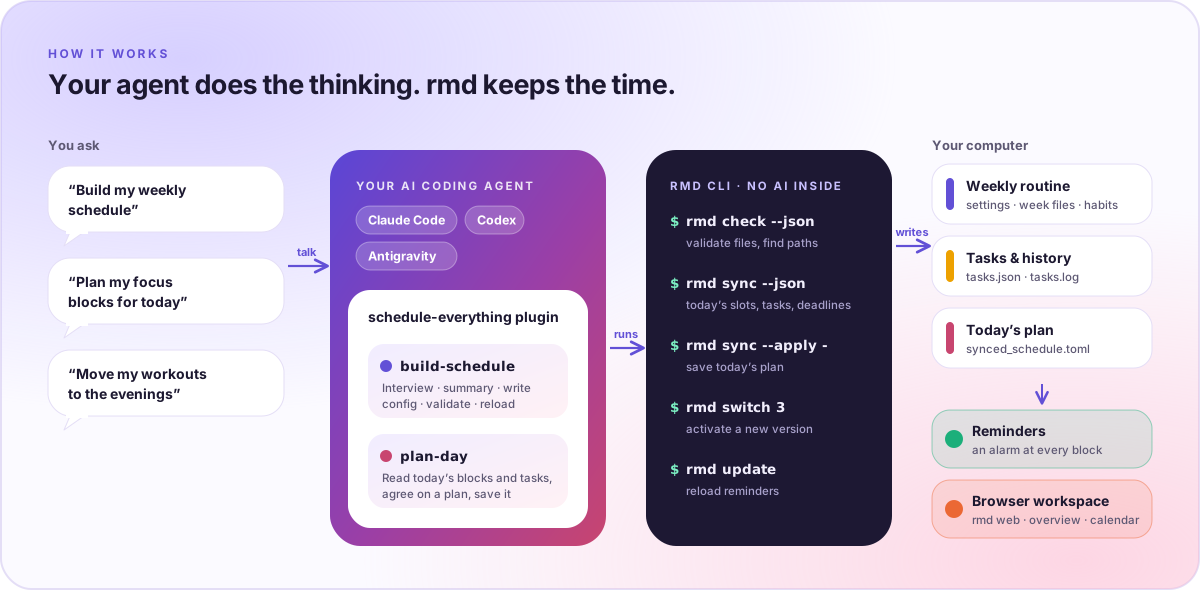
rmd does the deterministic work, and local files drive everything else.The most important design decision is the split of labour. The agent plugin’s skills ask questions and make judgment calls. rmd does the parts that must be exactly right: rmd check validates a configuration and reports where its files live, rmd sync --json describes today’s focus blocks and open tasks, and rmd sync --apply saves a plan. The reminder service, started at login, checks the schedule every minute and turns the files into alarms, and rmd web shows the same files in a browser.
Here is what happens when I ask for a plan in the morning:
sequenceDiagram
    actor Me
    participant Agent as AI agent · plan-day
    participant rmd
    participant Service as Reminder service
    Me->>Agent: Plan my focus blocks for today
    Agent->>rmd: rmd sync --json
    rmd-->>Agent: free slots, open tasks, deadlines
    Agent->>Me: Proposed plan, ordered by time
    Me->>Agent: Swap the 14:00 and 15:00 blocks
    Agent->>rmd: rmd sync --apply -
    rmd->>rmd: save today's plan (an overlay file)
    rmd-->>Service: picked up without a restart
Service->>Me: 14:00 alarm names the block's taskMy week is still a file#
The building blocks are the same as last year, and they are still the core of the system. In settings.toml, a time block is a reusable length of time with an alarm at the start and at the end, and a time point is a single reminder with a message:
[settings]
alarm_interval = 5          # seconds between repeats of the alarm sound
max_alarm_duration = 300    # stop ringing after five minutes
skip_days = ["sunday"]
language = "en"             # also "zh", "es", or "ko"

[time_blocks]               # minutes
pomodoro = 25
potato = 50
meeting = 50

[time_points]               # one reminder each
lunch_time = "Lunch 🍱"
go_to_bed = "Time for bed 😴"

[tasks]                     # fixed daily checks and reviews
daily_urgent = ["08:31", "14:01", "17:31", "21:31"]
ddl_urgent = ["08:32", "14:02", "17:32", "22:32"]
habit_prompt = "23:50"
weekly_review = "sunday 20:00"
The week lives in two files, odd_weeks.toml and even_weeks.toml, picked by ISO week number so that alternating timetables just work. A [common] section applies to every day, and a weekday entry at the same time wins. A block can carry its own title:
[wednesday]
"09:00" = "pomodoro"                                  # alarms at 09:00 and 09:25
"14:00" = { block = "meeting", title = "Advisor 1:1" }

[common]                                              # every day
"12:30" = "lunch_time"
"20:00" = "potato"
Untitled pomodoro and potato blocksIn my config a potato is a 50-minute block, the pomodoro’s bigger sibling. are the interesting ones: they are focus slots, and a daily plan fills them with real tasks. The plan is an overlay for today only. My weekly files never change.
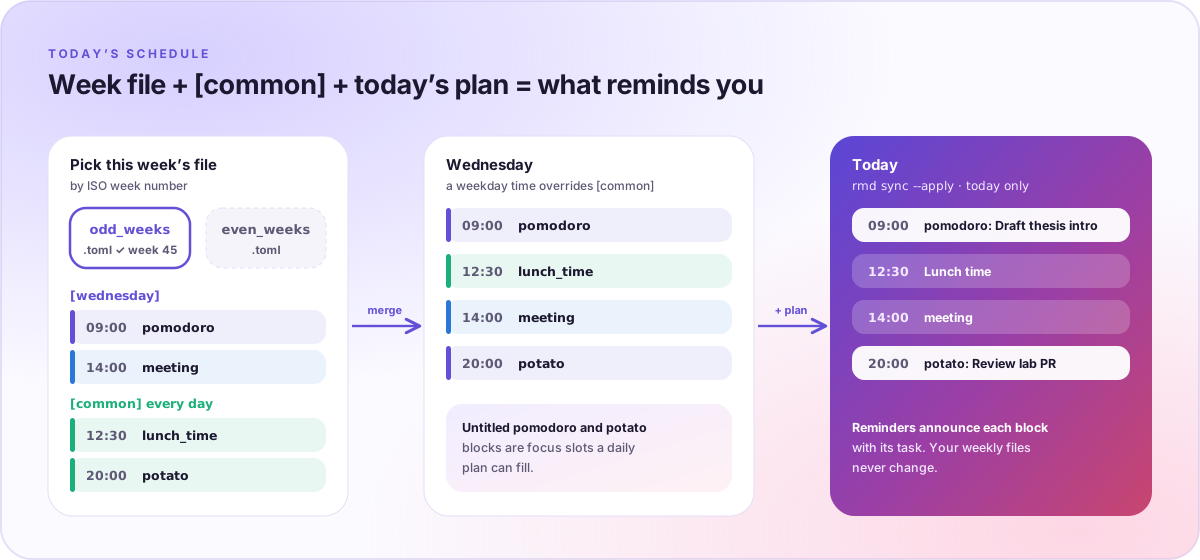
[common], plus today’s plan.Put together, a Tuesday from the template configuration looks like this, with three blocks planned:
A Tuesday: open and planned focus blocks, one-off reminders, and fixed checks
[tasks] times from settings.toml.Every change to the routine becomes a new version. The config root holds user_config_0, user_config_1, and so on, and rmd switch <n> activates one and reloads the reminders. Earlier versions stay put.
Letting the agent write it#
The slowest part of last year’s setup was the first hour: translating a course timetable, a few fixed meetings, and some vague intentions about exercise into TOML. That hour is now a conversation. The schedule-everything plugin works in Claude Code, OpenAI Codex, and Google Antigravity:
Claude Code
claude plugin marketplace add AutoPhd-org/schedule-everything
claude plugin install schedule-everything@schedule-everything
Codex
codex plugin marketplace add AutoPhd-org/schedule-everything
codex plugin add schedule-everything@schedule-everything
Antigravity
git clone https://github.com/AutoPhd-org/schedule-everything.git
agy plugin install ./schedule-everything/plugins/schedule-everything
Saying “build my weekly schedule” starts the build-schedule skill:
- It finds my files.
rmd check --jsonreports the config root, the active version, and which files exist. - It interviews me. Wake and sleep times, fixed obligations, goals, habits, when I focus best, and whether odd and even weeks differ. The answers go into
profile.md. If I hand it a timetable file or a screenshot, it reads that and only asks about what is unclear. - It shows me the week in plain language and waits for my confirmation before writing anything.
- It writes and checks. It writes
settings.toml, both week files,habits.toml, andprofile.md, validates them withrmd check, and reloads the reminders. Changing an existing schedule creates a new version instead of editing the active one.
Healthy defaults, not just a full calendar
When my answers leave gaps, the skill protects a few evidence-informed defaults: at least 7 hours of sleep opportunity with regular sleep and wake times, 150–300 minutes of moderate activity a week with strength work on two or more days, short movement breaks in long sedentary stretches, demanding work in my best-focus window, and daylight early in the day. They are scheduling heuristics, not medical advice, and my real constraints always win.
Sources: the AASM consensus on adult sleep; Sletten et al., The importance of sleep regularity; the WHO physical activity recommendations; Albulescu et al., “Give me a break!”; and Figueiro et al., daytime light exposure in office workers.
The daily loop is where the agent earns its keep. “Plan my focus blocks for today” runs plan-day, which reads today’s free blocks, my open tasks, and the nearest deadlines, matches the important work to the blocks, and saves the plan once I agree. Underneath, it is three commands I could type myself:
rmd sync --json | head -12
{
"date": "2026-11-10",
"weekday": "tuesday",
"parity": "even",
"mode": "j",
"skipped": false,
"slots": [
{
"time": "08:30",
"block": "potato",
"minutes": 50,
"title": null
rmd sync --apply plan.json
Saved today's plan with 3 focus blocks to ~/.schedule_management/config/synced_schedule.toml.
rmd sync
Today's focus blocks
╭───────┬──────────┬────────────────────────────────╮
│ Time │ Block │ Planned task │
├───────┼──────────┼────────────────────────────────┤
│ 08:30 │ potato │ — │
│ 09:30 │ potato │ — │
│ 10:30 │ potato │ — │
│ 11:30 │ potato │ — │
│ 14:00 │ potato │ Rerun the OSWorld ablation │
│ 15:00 │ potato │ Draft the related-work section │
│ 16:00 │ potato │ — │
│ 17:00 │ potato │ — │
│ 19:30 │ potato │ Leg day │
│ 20:30 │ pomodoro │ — │
│ 21:30 │ pomodoro │ — │
╰───────┴──────────┴────────────────────────────────╯
The plan itself is tiny. Keys are today’s slot times, a partial plan is fine, and applying a new one replaces the old:
{
  "date": "2026-11-10",
  "assignments": {
    "14:00": "Rerun the OSWorld ablation",
    "15:00": "Draft the related-work section",
    "19:30": "Leg day"
  }
}
The third skill, suggest-tasks, reads my connected apps (email, calendar, documents, issue trackers) for work I haven’t captured yet: a request waiting for a reply, a form with a date on it, a talk to prepare. It runs well as a scheduled routine every weekday morning.
Reminders that stick#
This is the part I refused to compromise on, and it has barely changed. At the start and end of every block, the service plays a sound every alarm_interval seconds and keeps a dialog open until I respond, for up to max_alarm_duration. With the template settings, it checks for urgent tasks four times a day, checks for deadlines that are getting close four more times, and asks about habits at night.
Tasks and deadlines are still a few keystrokes away. This is real output, from a fresh config:
rmd add "Rerun the OSWorld ablation" 9 3
✅ Task 'Rerun the OSWorld ablation' added successfully with priority 9!
rmd add "Draft the related-work section" 8 1
✅ Task 'Draft the related-work section' added successfully with priority 8!
# …and two more the same way
rmd ls
Current Task List
╭──────────┬─────────────────────────┬─────────────────────────────────────────────────╮
│ ID │ Priority │ Description │
├──────────┼─────────────────────────┼─────────────────────────────────────────────────┤
│ 1 │ █████████░ (9) │ Rerun the OSWorld ablation │
│ 2 │ ████████░░ (8) │ Draft the related-work section │
│ 3 │ ██████░░░░ (6) │ Leg day │
│ 4 │ █████░░░░░ (5) │ Review lab PR │
╰──────────┴─────────────────────────┴─────────────────────────────────────────────────╯
■ read papers ■ gym work ■ coding ■ other
rmd ddl add "Rebuttal due" 11.21
✅ Deadline 'Rebuttal due' added successfully for 2026-11-21!
rmd ddl add "Group meeting slides" 11.12 --repeat weekly
✅ Deadline 'Group meeting slides' added successfully for 2026-11-12!
rmd ddl
Current Deadlines
╭───────────────────────────────────┬───────────────────┬────────────────┬─────────────╮
│ Event │ Deadline │ Days Left │ Status │
├───────────────────────────────────┼───────────────────┼────────────────┼─────────────┤
│ Group meeting slides ↻ Weekly │ Nov 12, 2026 │ 2 days left │ 🔴 URGENT │
│ Rebuttal due │ Nov 21, 2026 │ 11 days left │ 🟢 OK │
╰───────────────────────────────────┴───────────────────┴────────────────┴─────────────╯
One small but useful change: there are now three ways to take a task off the list, and they mean different things in the history.
| Command | Use it when | Counts as done? |
|---|---|---|
rmd rm | I finished it | Yes |
rmd cancel | I added it by mistake | No |
rmd drop | I decided to give up on it | No |
J mode and P mode#
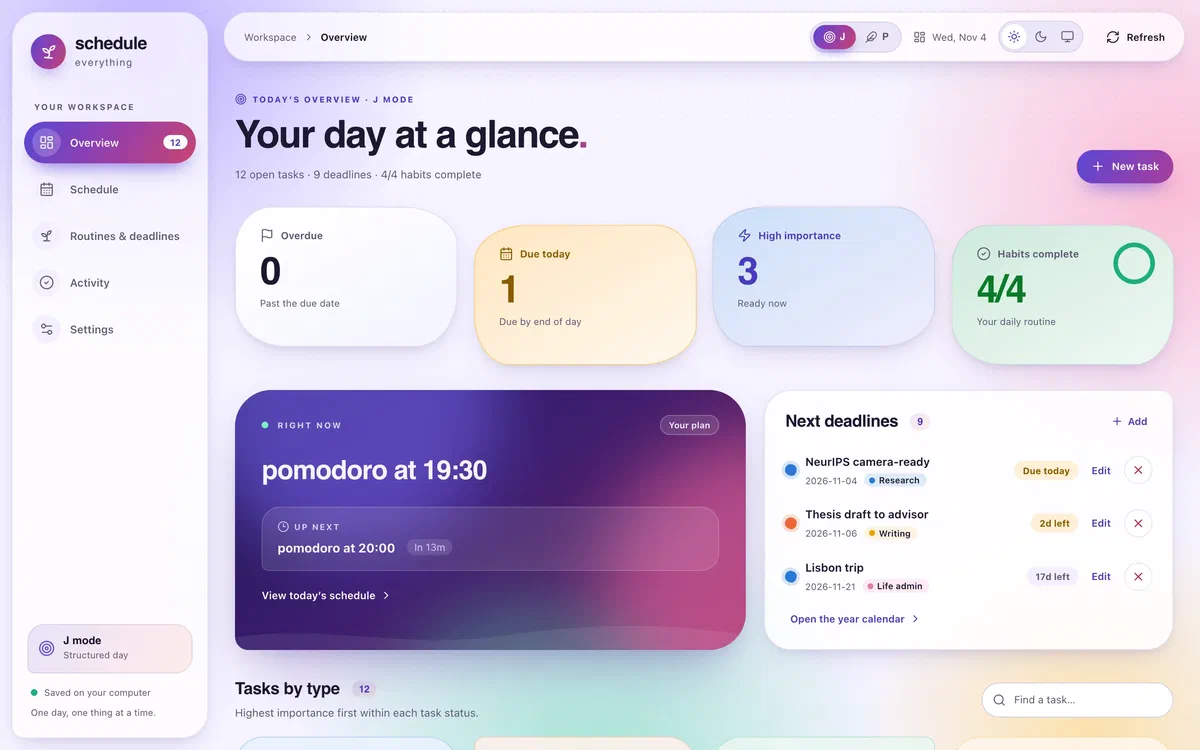
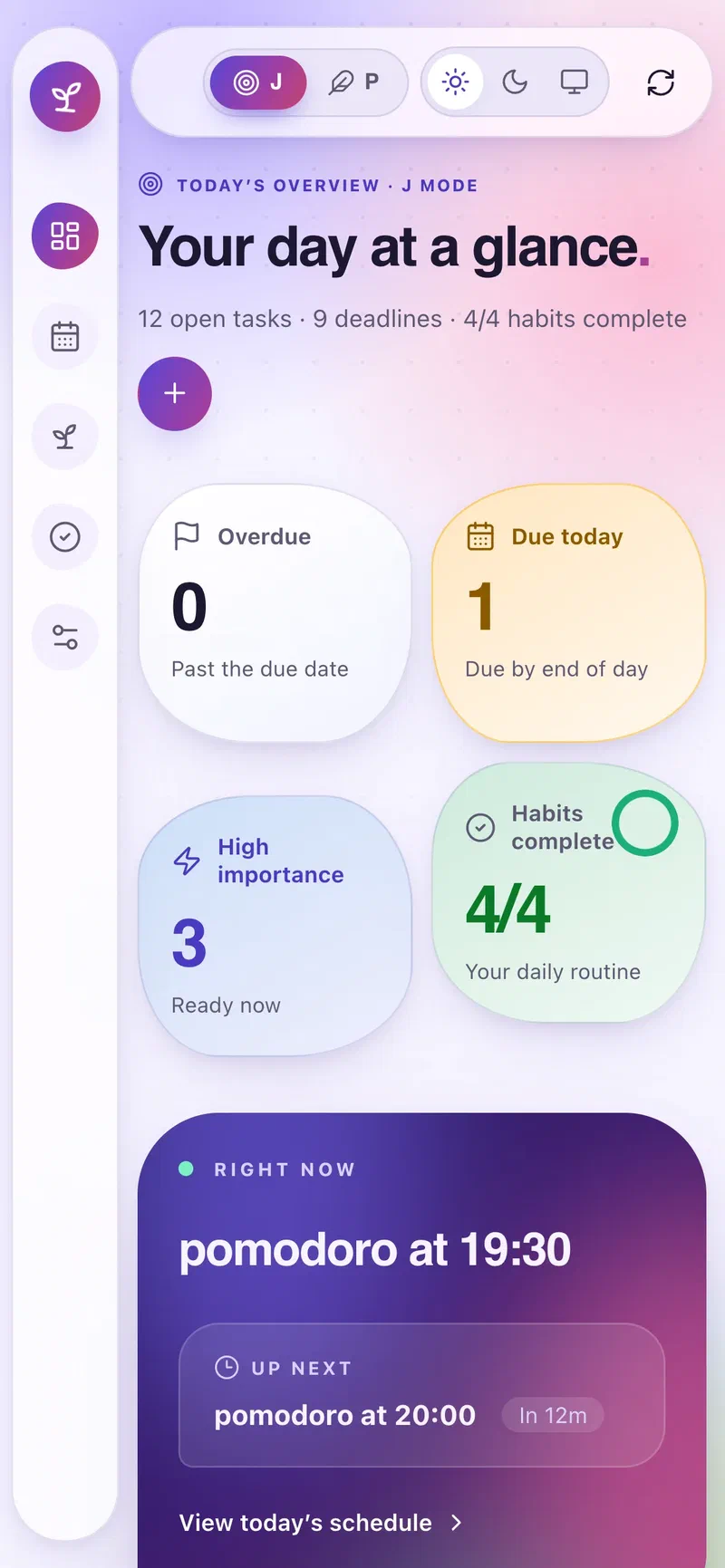
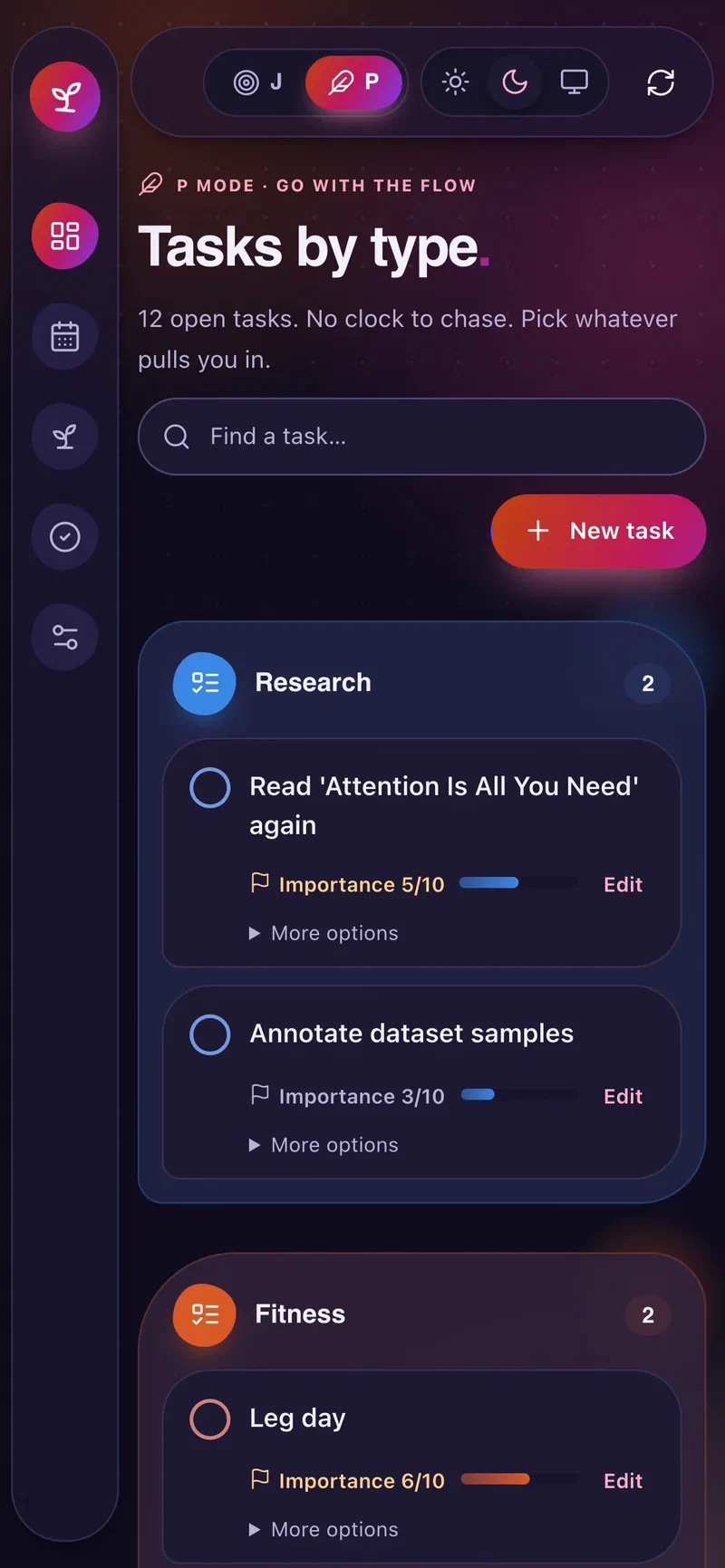
Not every day deserves a timetable. The J / P switch in the workspace header (or rmd mode j|p) changes the reminder service and the browser together.The letters borrow the judging/perceiving pair from personality-type jargon: J plans ahead, P keeps options open. J mode is the structured day: status counts, the current and next block, upcoming deadlines, the task board, and the timeline. P mode pauses alarms for selected events and keeps only the tasks, grouped by type. Drag the handle to compare:
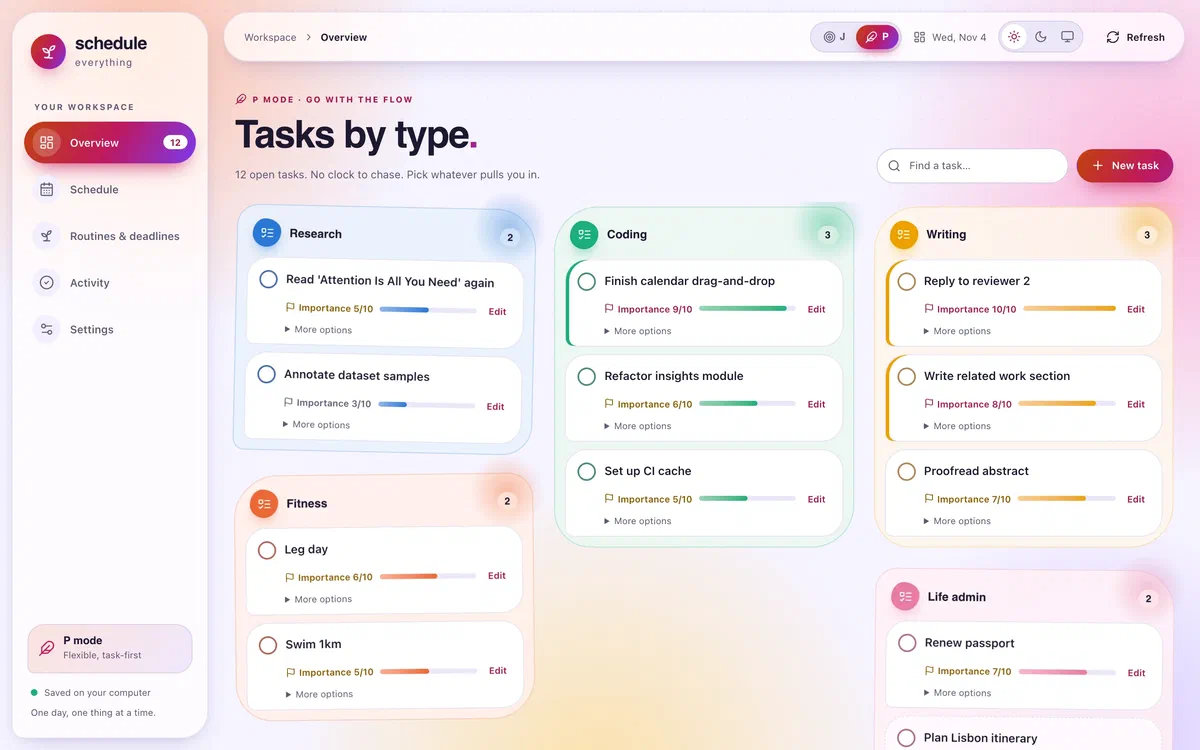
The workspace#
rmd web opens a local workspace on 127.0.0.1 that reads and writes the same files as the CLI, and only accepts API calls that carry the session token of the tab it opened. It has five pages: Overview, Schedule, Routines & deadlines, Activity, and Settings, and it speaks English, Chinese, Spanish, and Korean.
Workload: how heavy is the pile?#
The most useful number on the Overview is workload. Every open task counts its importance out of 10, times the share of it still left: an importance-8 task counts 0.8 untouched, 0.4 when half done, and nothing when finished. The total falls into one of five levels, and the workspace’s colours follow it, from cool greens and blues when the plate is clear to warm oranges and reds when it is heavy. Try it with the four tasks from above:
The board itself groups tasks by type. Each task can have a finish-by time, a progress slider, or a checklist of subtasks, and dials above the board count down to whatever is due tonight. A Glossary page explains every number the workspace shows, with the formula, an example, and my own current value.
Schedule, deadlines, and the year#
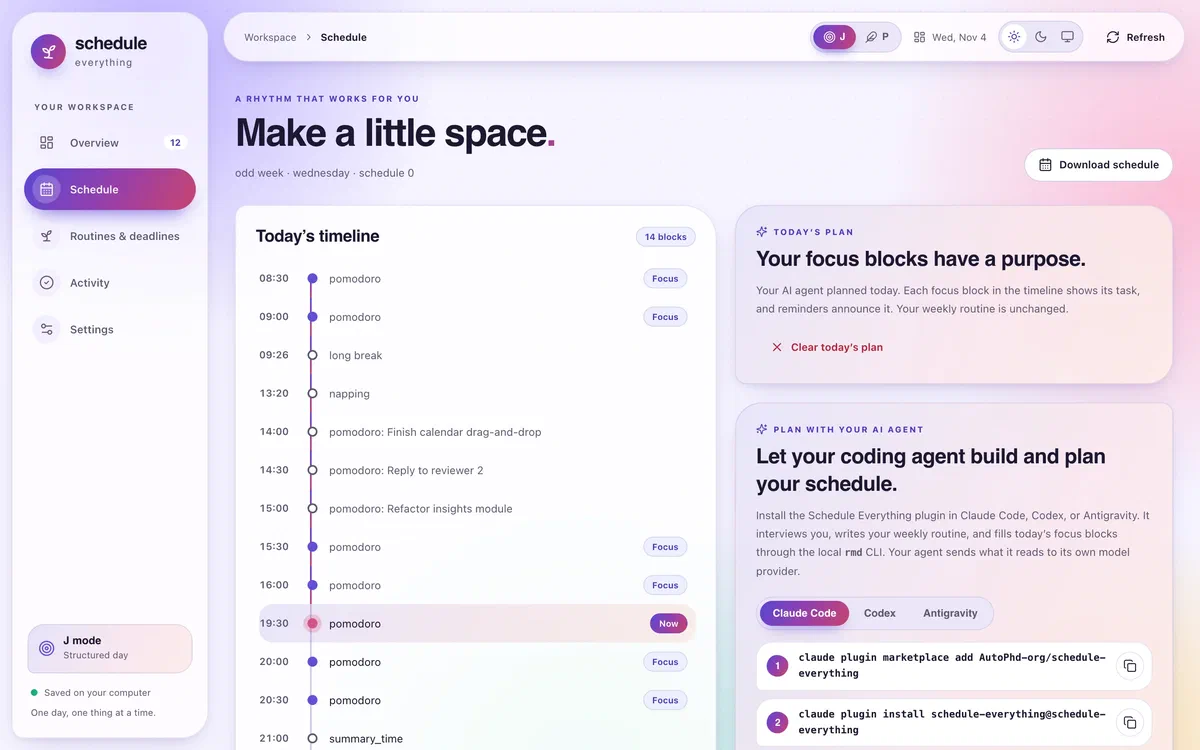
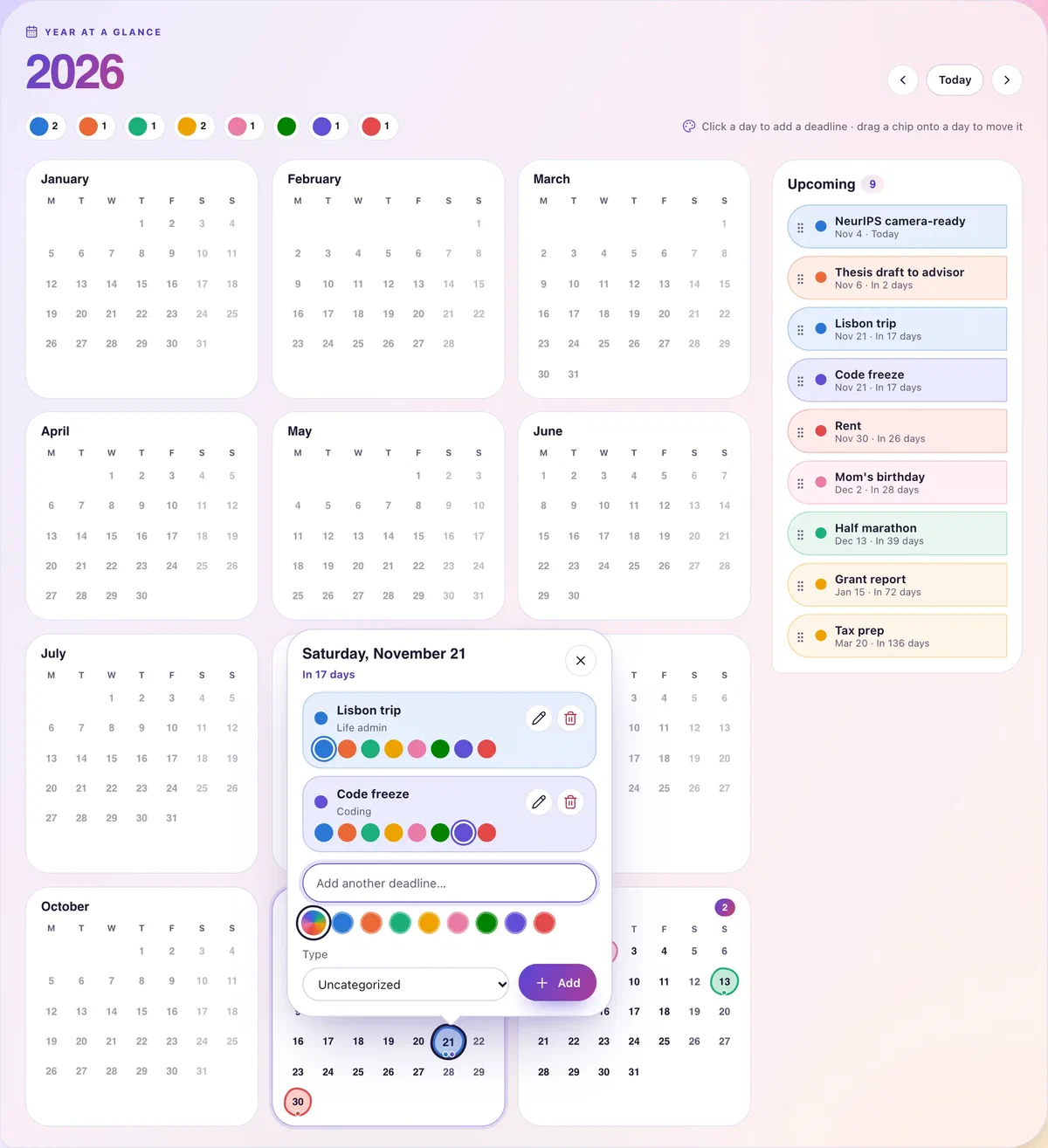
Routines & deadlines puts every deadline on a year calendar. Deadlines can repeat weekly, every two weeks, or monthly, get one of eight marker colours, and move by dragging their chip to another day. There is also a switch that adds submission deadlines, rebuttal periods, and conference dates for NeurIPS, ICLR, ICML, CVPR, ACL, ICRA, and other major venues, in my time zone. If your year is organised around conference deadlines, that switch saves a lot of copying.
Activity: little wins add up#
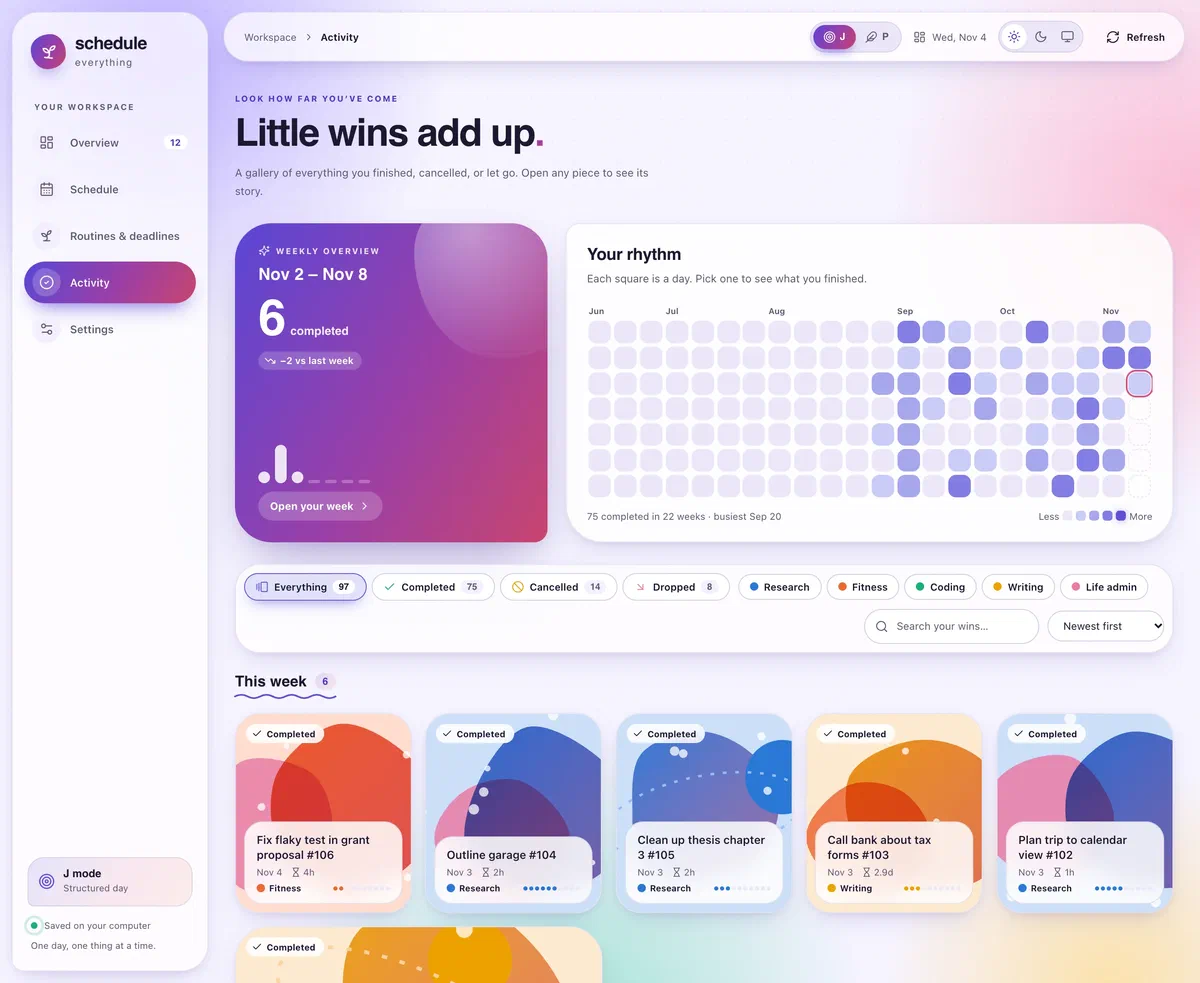
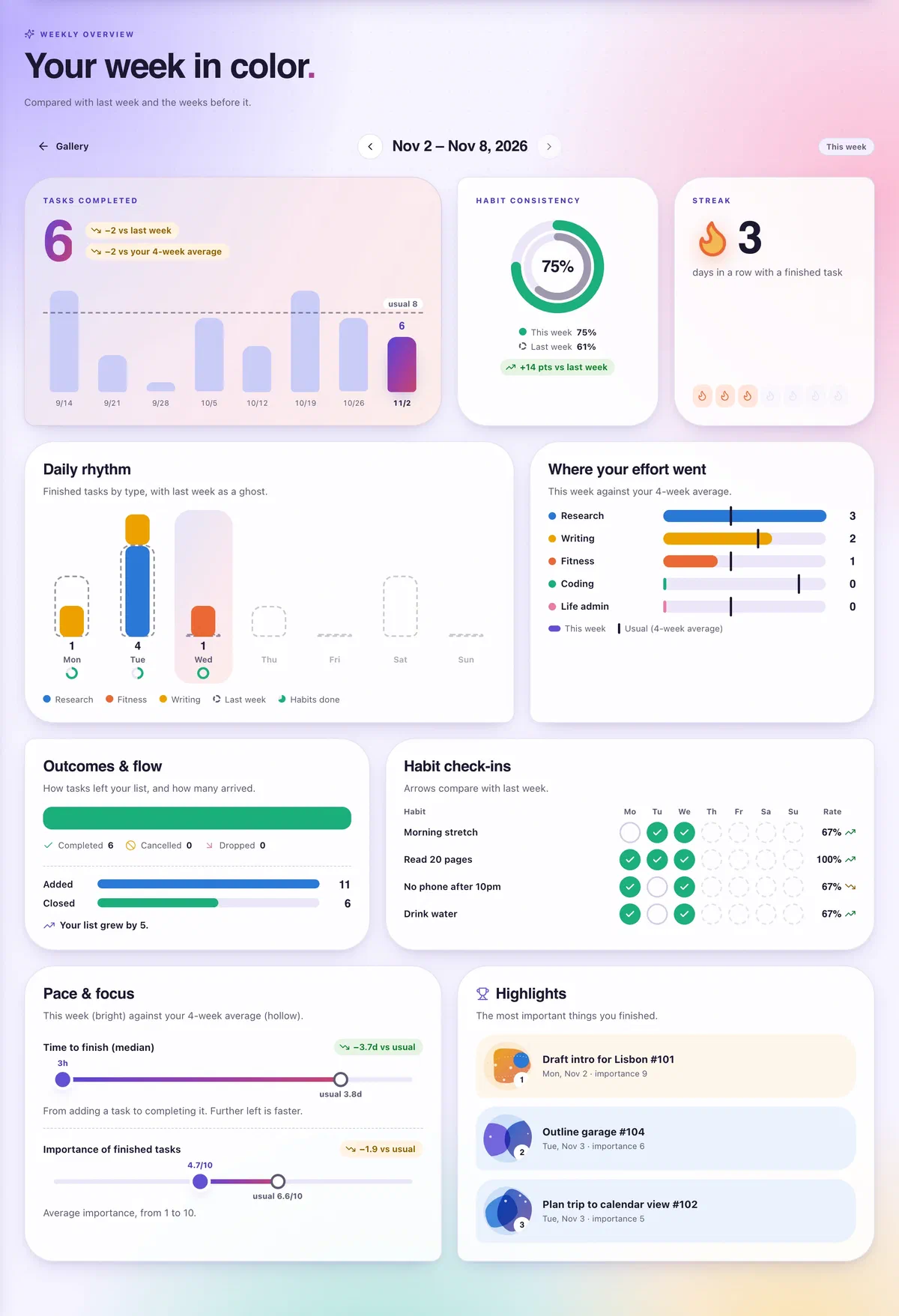
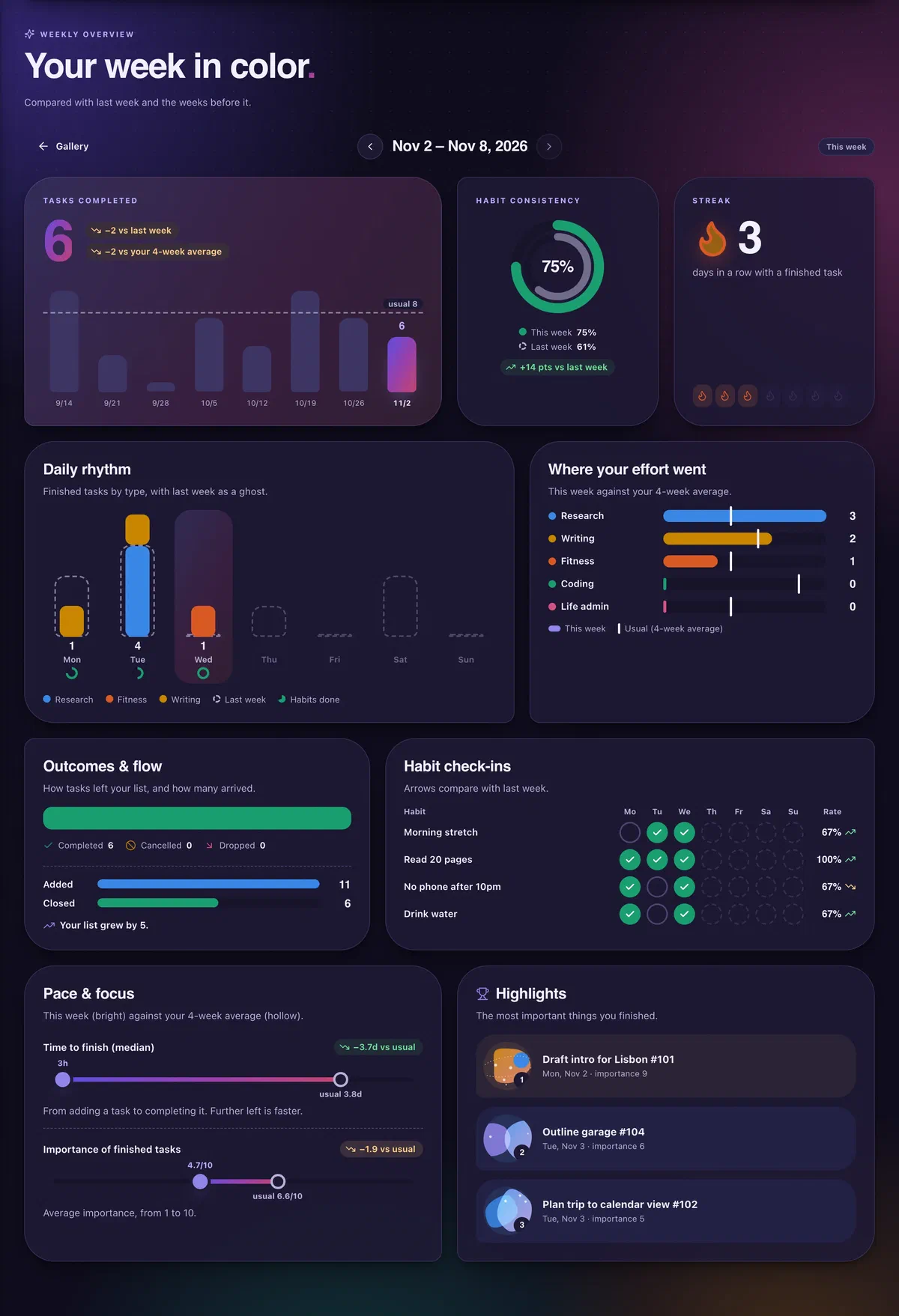
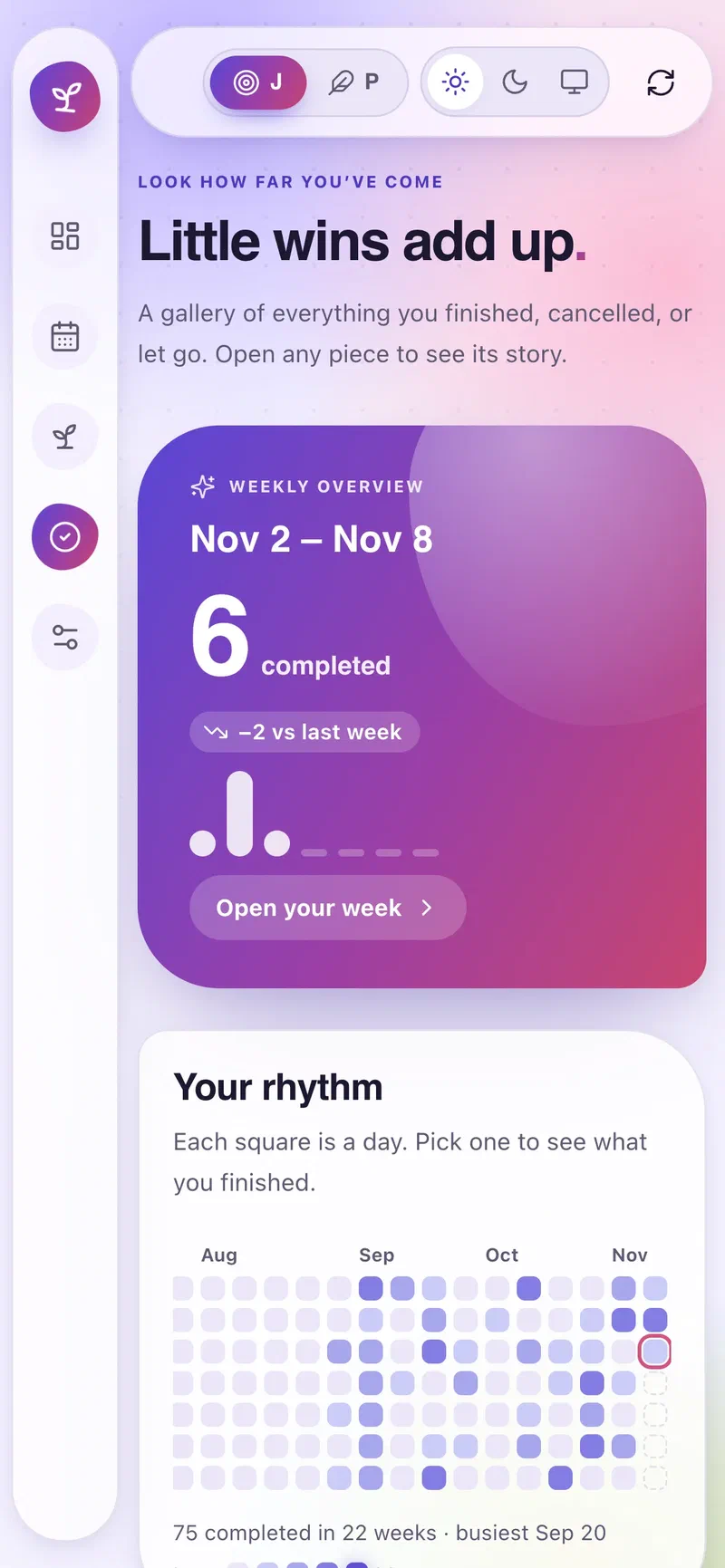
Everything I finish, cancel, or drop grows along a timeline tree, one lane and colour per task type. There is a gallery view with generated artwork for each finished task, a rhythm grid of completions per day, and a weekly overview that compares this week with last week and my recent average. That overview follows this page’s theme: toggle dark mode at the top to see both versions.
Plugins for things that need more than a list#
A workspace plugin is a task category with its own page and tracking. The built-in Fitness plugin has a body figure that shades each muscle by how many sets worked it this week, a workout builder, a live session with a rest timer, personal records, and body weight. Custom trackers cover practice time, new words, pages read, or anything else, each with weekly goals. A plugin is only visible to my AI agent if I switch that on, in which case suggest-tasks can propose, say, a leg workout when my legs have rested for a week.
On my phone, too#
rmd web --phone prints a pairing code. Scanning it lets my phone use the workspace on my computer: same tasks, same plan, nothing copied or synced. It works on the same Wi-Fi, or from anywhere over Tailscale.
Principles, revised#
Last year’s list held up, with a few additions from a year of living with it:
- Make every task small and specific. “Refine the introduction of the report”, not “work on the report”. A planned block’s title is capped at 120 characters, which turns out to be a useful constraint.
- Separate what has a time from what doesn’t. If something must happen at a time, it gets a block, a time point, or a deadline, and therefore an alarm. Everything else waits on the board for a focus block.
- Let something outside your head nag you, and make it hard to dismiss. A notification I can swipe away is a suggestion. A dialog that keeps ringing is a commitment.
- Let the agent propose; keep the decision.
build-schedulewaits for my confirmation before writing a file, and suggestions wait until I accept them. Planning got cheaper without my week being decided for me. - Make progress visible. A streak and a growing timeline are more motivating than a shorter list.
- Be honest in the log. Finished, cancelled, and dropped are different things, and the statistics only mean something if I record which one happened.
- Anything at importance 8 or above gets done before tomorrow. Still my one hard rule.
- Sleep beats one more block. The agent’s defaults put sleep first, and so should I.
Try it#
You need Rust installed, because the installer builds rmd from source (the first build takes a few minutes):
curl -fsSL https://raw.githubusercontent.com/AutoPhd-org/schedule-everything/main/install.sh | bash
rmd check
rmd web
The installer puts rmd in ~/SCHEDULE_MANAGEMENT, creates the config root in ~/.schedule_management/config with a first user_config_0, and registers the reminder service as a LaunchAgent on macOS or a systemd user service on Linux. It never overwrites existing configuration, so running it again is also how you update. Then add the plugin to your agent and say “build my weekly schedule”. The documentation covers the rest.
Last year I ended with “your schedule is code”. It still is. What changed is who writes most of it: I describe my week, the agent writes the TOML, rmd check keeps it honest, and an alarm that won’t go away makes sure I actually show up.